This document walks you through the basic steps to get your
organization setup to use Data Sets in Arrowpointe Maps.
To get acclimated with the functionality, we have a demo of how the feature works here.
Confirm Arrowpointe Maps Installation
The Search Nearby feature was introduced in Arrowpointe Maps 1.2. Please go to the
AppExchange and ensure you have the latest Arrowpointe Maps release, version 1.2 or higher.
Add Fields to Page Layout (Professional Edition customers only)
In order for the new fields to be available to Arrowpointe Maps via the
API, they need to be on your Page Layout. Professional Edition customers should edit their Lead, Account and
Contact page layout to include all of the new Arrowpointe Maps fields.
Any fields included have "(AP Maps)" in the label (e.g. Latitude (AP
Maps)). The fields are listed below:
- Geocode Accuracy Code (AP Maps)
- Geocode Outdated By (AP Maps)
- Last Updated (AP Maps)
- Latitude (AP Maps)
- Longitude (AP Maps)
- Process ID (AP Maps)
Configure Data Sets
Data Sets are used in the Search Nearby feature. A data
set is defined as an object + an optional filter. The default data
sets are All Accounts, All Contacts, All Leads, My Accounts, My
Contacts and My Leads. New ones can be created too. For example,
suppose you designate your Customers as Accounts with a Type field =
"Customer". You can create a data set for these. This will allow your
users to just look for Customers in a given proximity as opposed to all
Accounts. To do this, a Fixed Filter field is included on the Data Set
record for you to configure. This field works in exactly the same way
it does on Map Pages.
Your list of Data Sets is located in the
Admin area. Click the Data Sets tab to see them. You will only have
the option of deleting your custom datasets.
![]()

In
addition to the Fixed Filter field, you can choose fields that should
be included in the Data Set when records are found and the shape/color of the markers on the map. These fields will
be included in the records returned from the Data Set when doing a
proximity search.
![]()

Process Data Set Data
Once you have finished editing the Data Set, you need to run Setup on it. From the Data Set list, click the
Setup link for the Data Set you wish to get prepared. When you first install the application, it's possible that you will receive an error that certain fields cannot be found. If you get this error and you are on Professional Edition, then make sure you competed the step above. If you are still getting the error or if you are on Enterprise or Unlimited Editions, try closing your browser and re-connecting.
![]()

The
top section simply displays information from the Edit screen just so
you know you are working with the right data set record. The Setup
Information section is validating your query. You want to see the word
"
Success!" here. If you see
something else, it probably means that your Fixed Filter is setup
incorrectly. The error message should explain what the problem is and
you can go and correct it. The next 2 fields show you the total data
count for the record set and also a count of records that should be
re-processed because they are either new records or have been updated
since the last time you processed them.
"Processing" your data
set means that you are asking Arrowpointe Maps to pre-determine the
latitude and longitude of the record. Doing this will allow the
application to look for records that are "nearby" others. The Process
Data Set section on the page contains 2 buttons. One will process all
records and the other will process the ones that are either new or
updated since the last run. Click the corresponding button and wait
for the screen to be updated indicating it is finished. It is
important that you do not leave the page while the process is running.
If you do, the process will be stopped.
Once it's complete, you can click the Refresh button to make sure there are 0 records in the New/Recently Updated count.
NOTE: For
the initial release, your records are not processed automatically. It
is up to you to periodically go in and process the data set. This is
obviously inconvenient and we will be adding functionality that does
this automatically for you. For now, however, this is a manual process
Configure Page Layouts
When you installed your AppExchange package, a "Search Nearby" button
was added to your configuration for Leads, Accounts, Contacts,
Opportunities and Cases. Through the AppExchange installation process,
we do not have the ability to automatically add those to your Page Layouts so that they are visible to your end users. This task needs to be done by you, the Salesforce.com administrator.
This is actually a good thing as it eliminates the risk of your users
clicking on buttons that they shouldn't prior to knowing more about
them.
To add these buttons to your configuration, you need to complete the
following steps for Leads, Accounts, Contacts, Opportunities and Cases page layouts.
- Edit the Page Layout that you want to add the button to.
- Highlight the Detail Page Buttons section and click Edit Properties.
- In the window that pops up, add the Search Nearby button to the layout.
- Click OK.
- Save the Page Layout
- Repeat for all your applicable Page Layouts
Now your users are able to use the Search Nearby feature.
NOTE: Only active Arrowpointe Maps users will be able to use
the Search Nearby feature. Salesforce.com configuration does not allow
you
to segment who can see the Search Nearby button. Thus, it is possible
that some of your users will click the button, only to find out that
they do not have an Arrowpointe Maps account. As soon as
Salesforce.com provides a facility to stop this from happening, we will
inform our users.
Test It
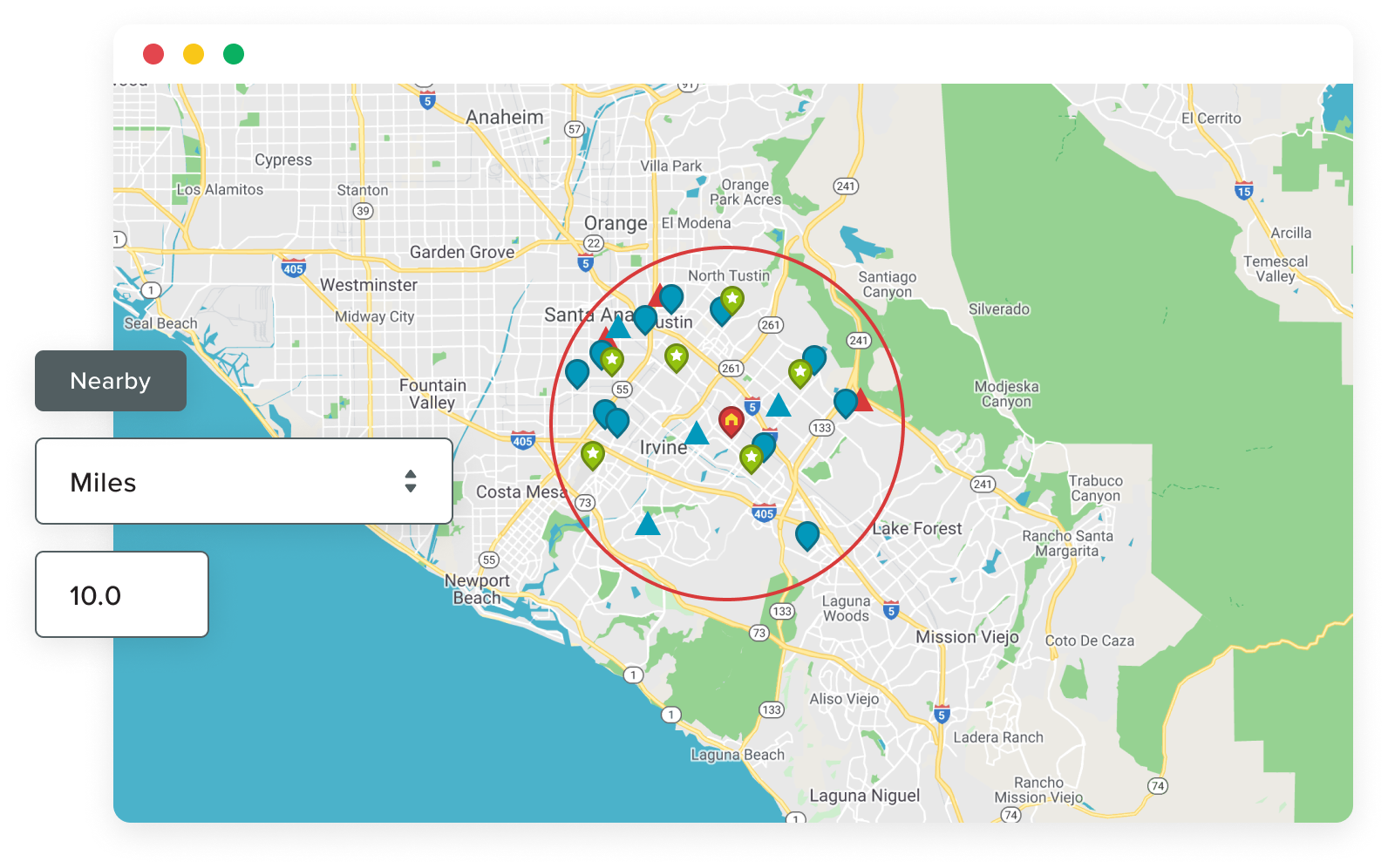
Go to a record and click the Search Nearby button. This should bring you to a page showing that record on a map.

Use the form at the top of the page to select a Data Set, set a proximity, choose a unit of measure (miles or kilometers) and choose whether to keep any existing results on the page. Click Search when you are ready.

The "Clear Existing Search Results" option is there to let you put multiple Data Sets on the map at the same time. To do that, uncheck the option. When you do that, any existing markers on the page will be kept there. An example of doing this might be if you want to include both Leads and Accounts in the same map.